How to debug SSRS reports in D365 F&O
SSRS reports are one of the reporting types that you can use in Dynamics 365 FO. It allows you to view data in different shapes, designs, and styles. Sometimes we face situations where we should know how the values were calculated on the report. Debugging the code while we run the report will help us get more details. Today I'll give you the steps to debug SSRS reports from VS Studio.
Steps to debug the SSRS report:
Open the SSRS report DP class, you can get the class name by right-clicking on the DS name of the report and getting the name from there, as in the below image

In the DP class declaration, change the SRSReportDataProviderBase to SrsReportDataProviderPreProcess

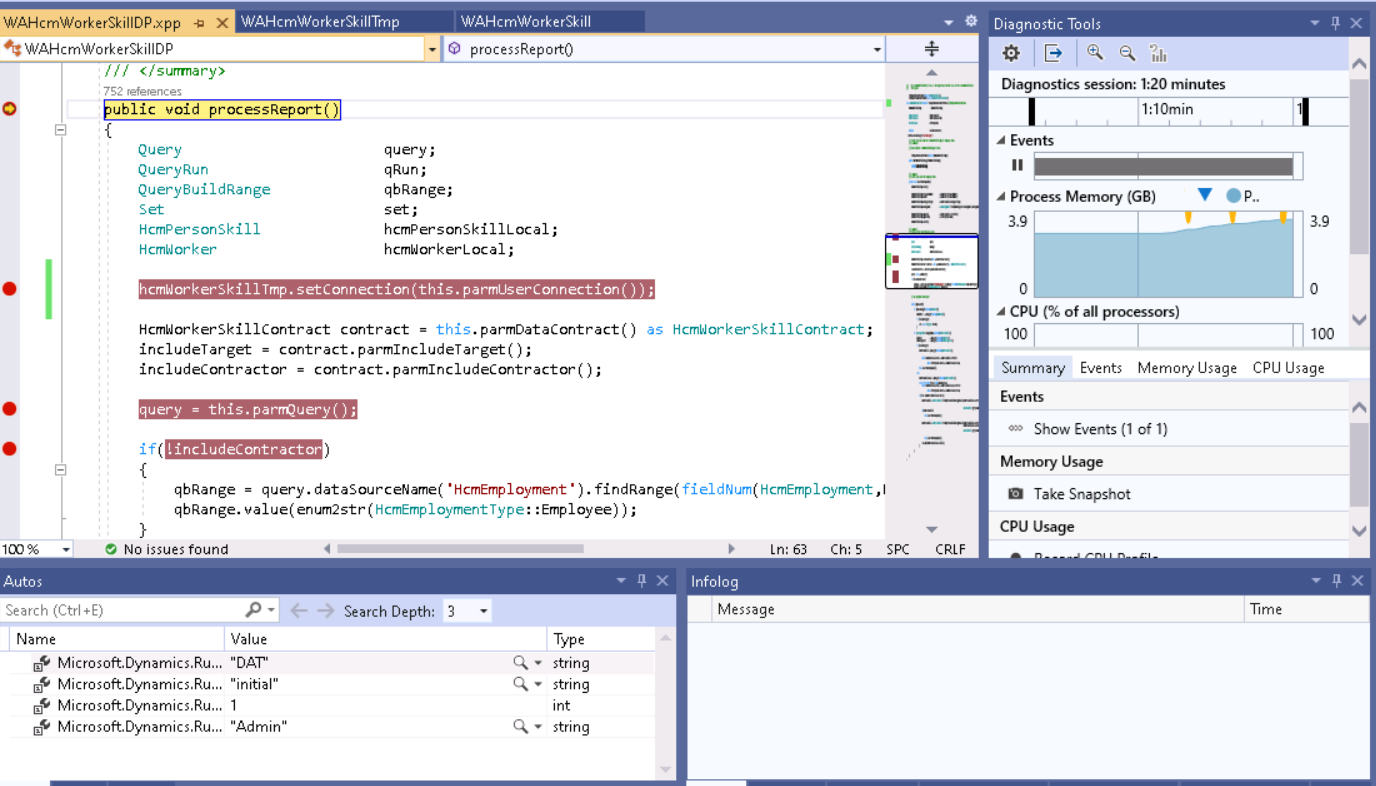
In the processReport method, add the following line to the start of the method: YourSSRSTmpTable.setConnection(this.parmUserConnection());

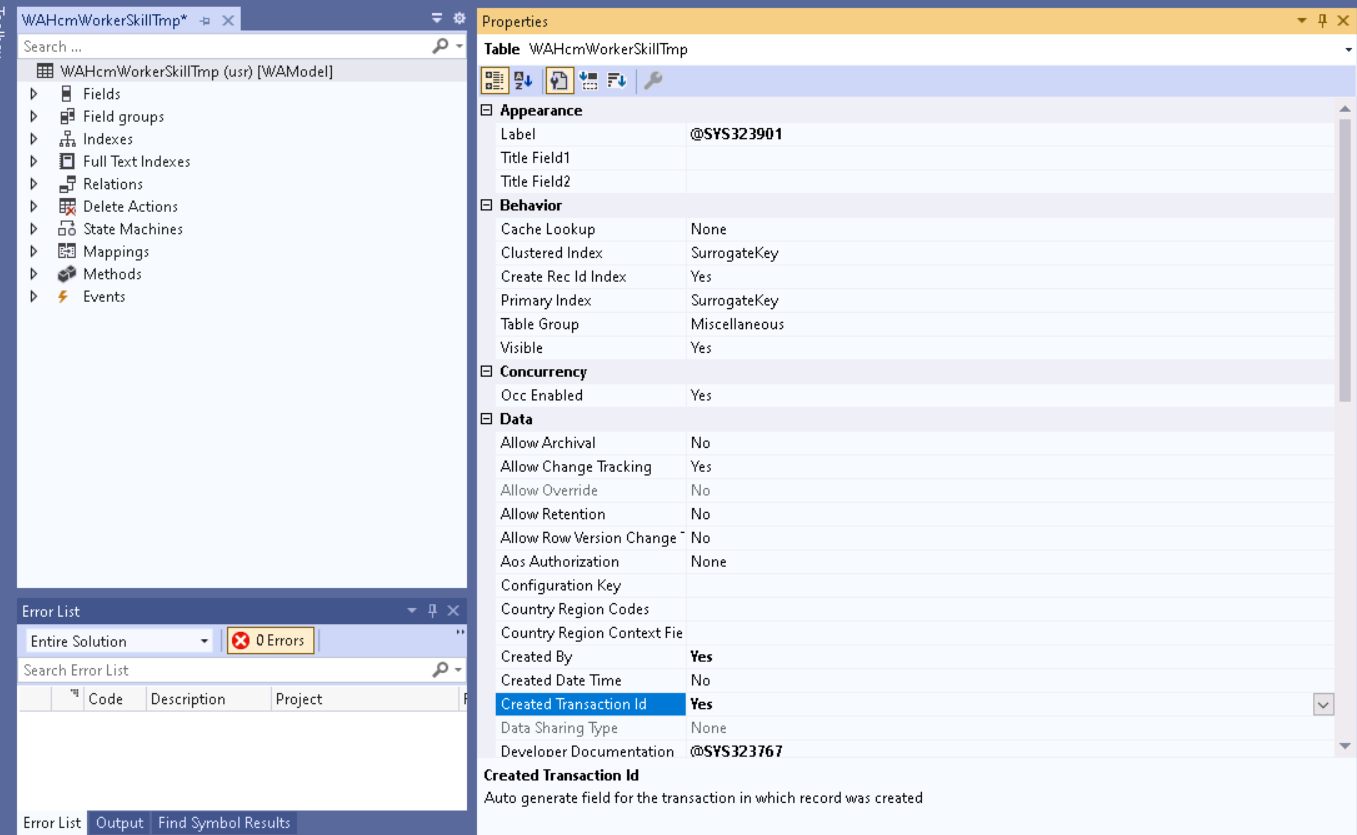
In SSRS temp table, change the following properties:
a. Change Created by to Yes
b. Change Created Transaction Id to Yes.
c. Change Table Type from TmpDB or InMemory to Regular.

Happy debugging😊😊.